Bringing Claude Code Into My R Workflow
I spend most of my analysis time in RStudio, and I wanted an AI assistant that lives inside that workflow rather than in a separate browser tab where I would have to copy code back and forth. Claude Code turned out to be a clean fit; that means I can run Claude Code right next to my scripts, let it read my actual project files, and have it edit them in place, without leaving the IDE I already use.
This is a walkthrough of how I set it up. I will cover a few configuration steps that made it more useful for statistical work, along with some habits I have adopted to keep it from making changes I did not intend. The goal is to let Claude Code understand my analysis project and help me work with it directly, while I remain in control of the decisions behind the analysis.
Before giving Claude Code access to an analysis project, make sure you understand what data it can access and whether you are permitted to use it in that environment. Do not place personally identifiable information, protected health information, confidential institutional data, or other sensitive information into a project unless the relevant privacy, security, and institutional requirements have been satisfied.
What Claude Code Is (and Isn’t)
Claude Code is not an RStudio addin or an R package I install from CRAN. It is a standalone program that runs in a terminal. From there, it can read files in the directory where I launch it, edit those files, run commands, and work across multiple files in a project. Because it works with the project itself rather than with code pasted into a chat window, it can see the folder structure and understand how different scripts and files relate to one another. That is what makes it particularly useful for multi-file analyses.
RStudio has a built-in terminal pane (Tools → Terminal, or the Terminal tab beside the Console), and anything I can run in a system terminal can also be run there, including Claude Code. There is therefore nothing RStudio-specific to install. I install Claude Code once, then launch it from the RStudio terminal whenever I want it alongside my analysis.
One thing to keep in mind is that Claude Code requires a paid Anthropic account (Pro, Max, Team, Enterprise, or API credits). It is not available with the free plan.
Installing Claude Code
On macOS or Linux, I install it with a single command in the terminal:
curl -fsSL https://claude.ai/install.sh | bashThis downloads and runs Anthropic’s official installation script. The installation completes successfully, and Claude Code is installed in ~/.local/bin.
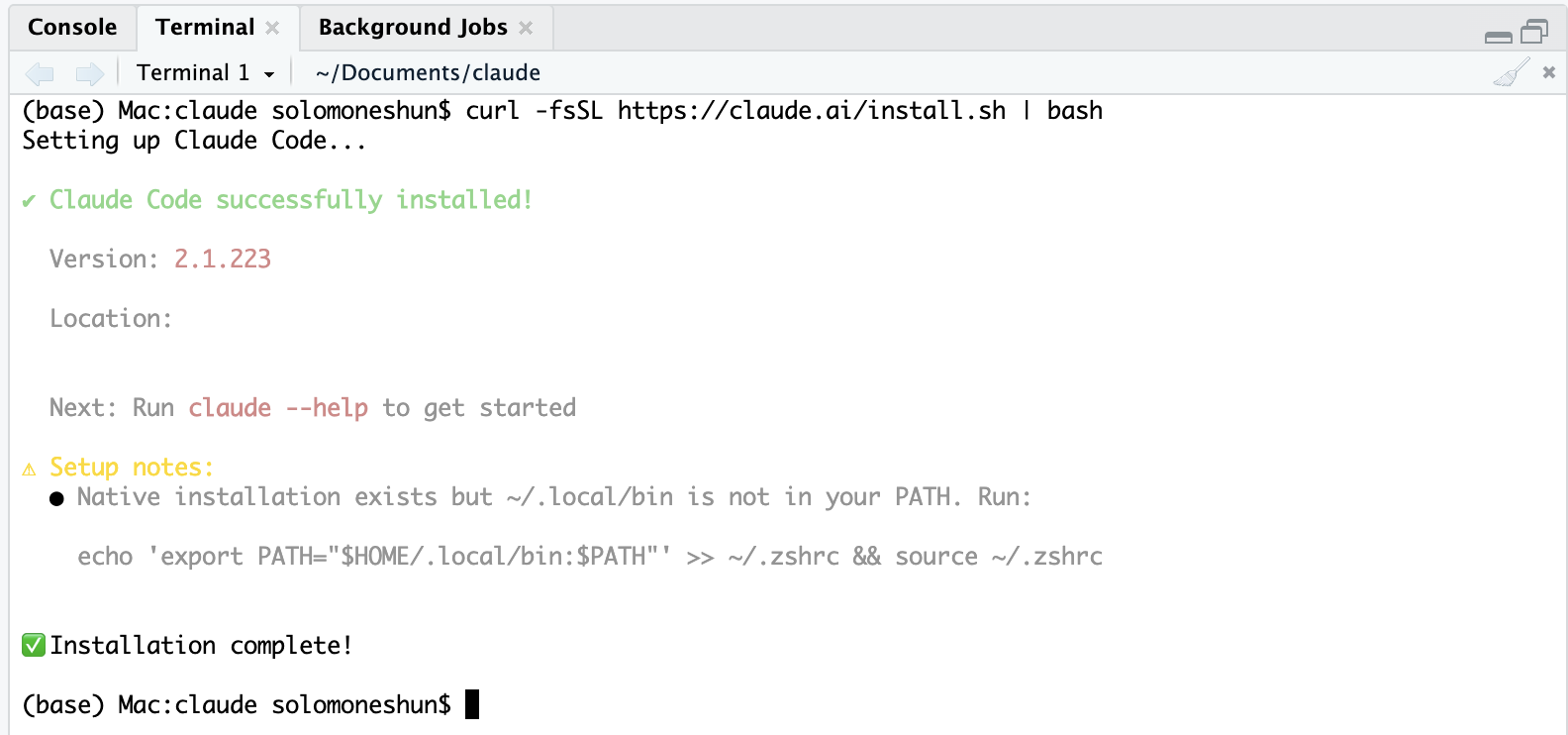
The installation itself is complete at this point, but there is one additional setup step. Claude Code was installed in ~/.local/bin, which is not currently included in the system’s PATH. It is necessary to add this directory to the PATH so that I can run Claude Code using the claude command.
echo 'export PATH="$HOME/.local/bin:$PATH"' >> ~/.zshrc && source ~/.zshrcOnce this is done, I can confirm that Claude Code is available from the terminal:
claude --versionIf this prints a version number, the claude command is available from the terminal. If it returns “command not found,” closing and reopening the terminal is often enough to reload the updated PATH. Claude Code also provides a diagnostic command, claude doctor, which can check the installation and authentication when something is not working as expected.

Launching from the RStudio Terminal
Now that Claude Code is installed and the claude command is working, I can launch it directly from the RStudio Terminal:
claudeThe first time I run it, Claude Code walks me through authentication. It provides a URL, I complete the login in my browser, and paste the returned code back into the terminal. After authentication, starting a new session is simply a matter of running claude.
Once Claude Code is running in the project, one of the most useful setup steps is running /init:
# (typed inside the Claude Code session)
/init
This scans the project and generates a CLAUDE.md file (a short document describing the project’s structure, conventions, and how things fit together). Claude Code reads this file automatically on every launch, so it starts each session already knowing the shape of my project rather than rediscovering it each time. For an analysis repo, I can edit the generated CLAUDE.md to add things it cannot infer: which script is the entry point, that I prefer base R pipes, that results go in an output/ folder, and any conventions I want followed. This is useful because it means I do not have to explain the same project context every time I start a new session. Instead, Claude Code begins with a set of instructions that describe how I want it to work.
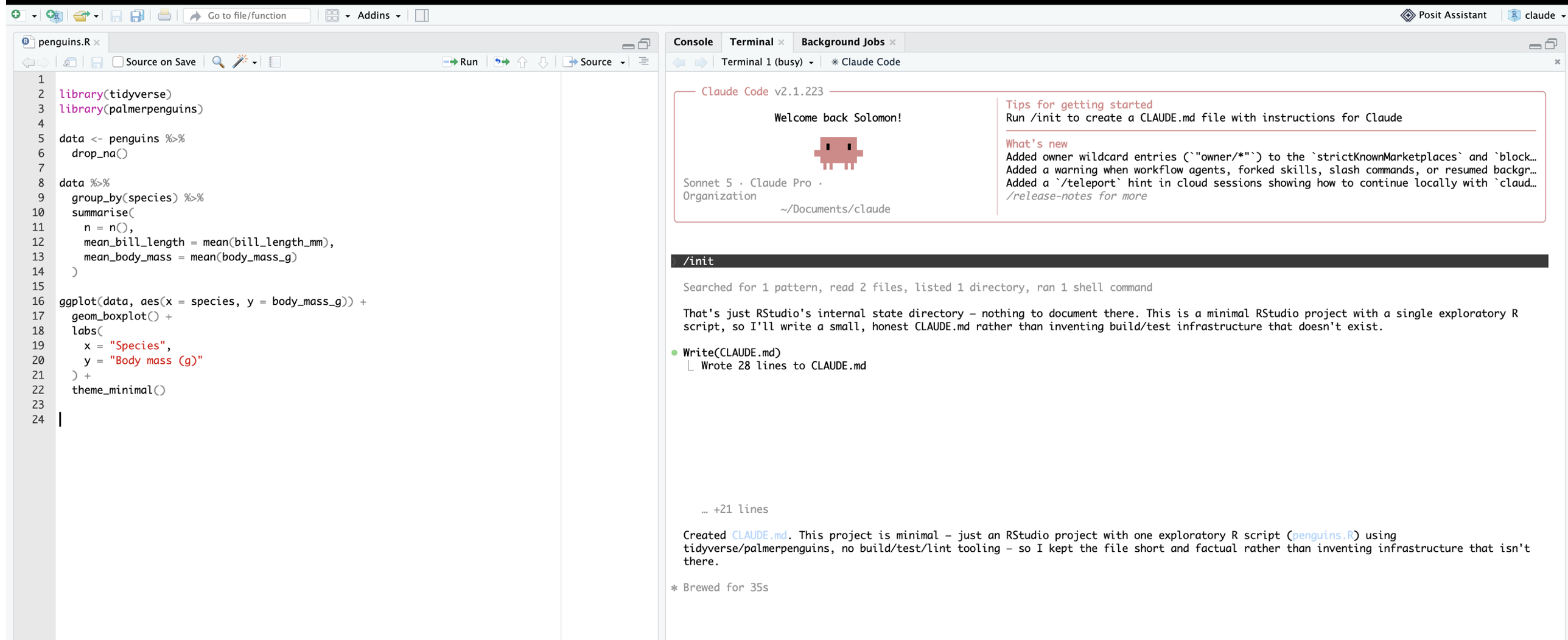
Now, suppose I have an R script called penguins.R containing a small analysis of the Palmer Penguins data. I want to extend the analysis by adding a few statistical and visualization steps. With Claude Code running in the project, I can describe what I want in plain language directly in the terminal:
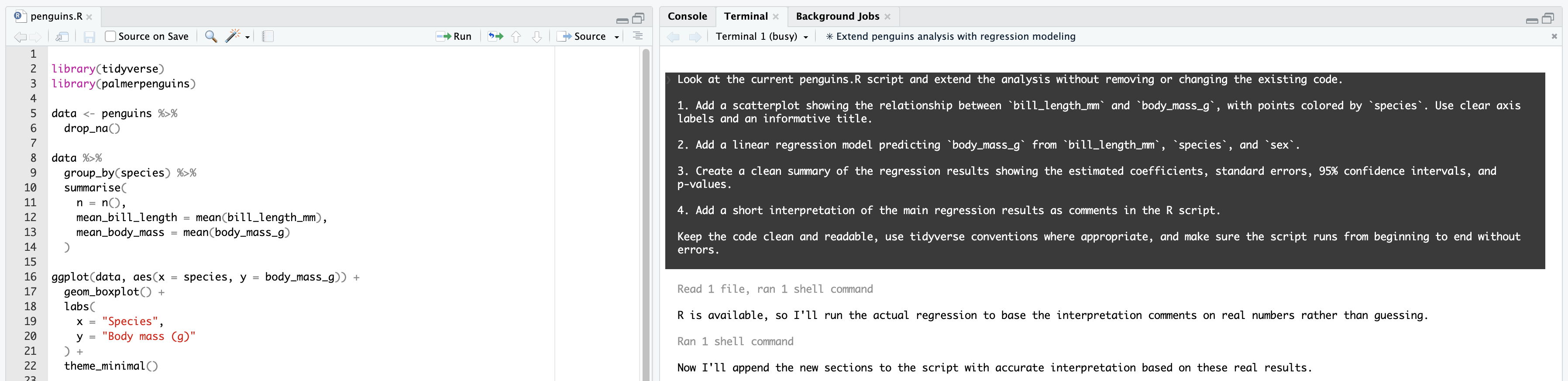
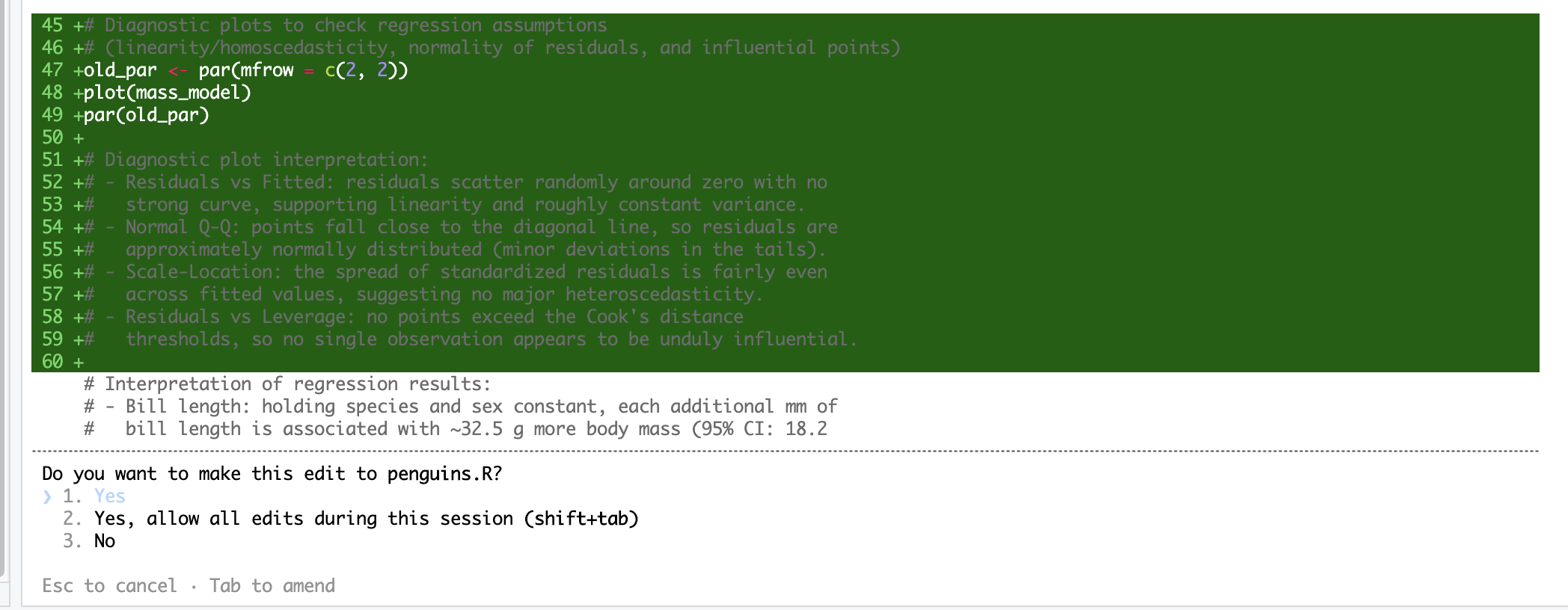
Claude Code can inspect penguins.R, understand the existing code, and propose the changes needed to carry out the request. Before applying those changes, it shows me a diff so I can see what will be added, removed, or modified. The proposed addition looks like this:
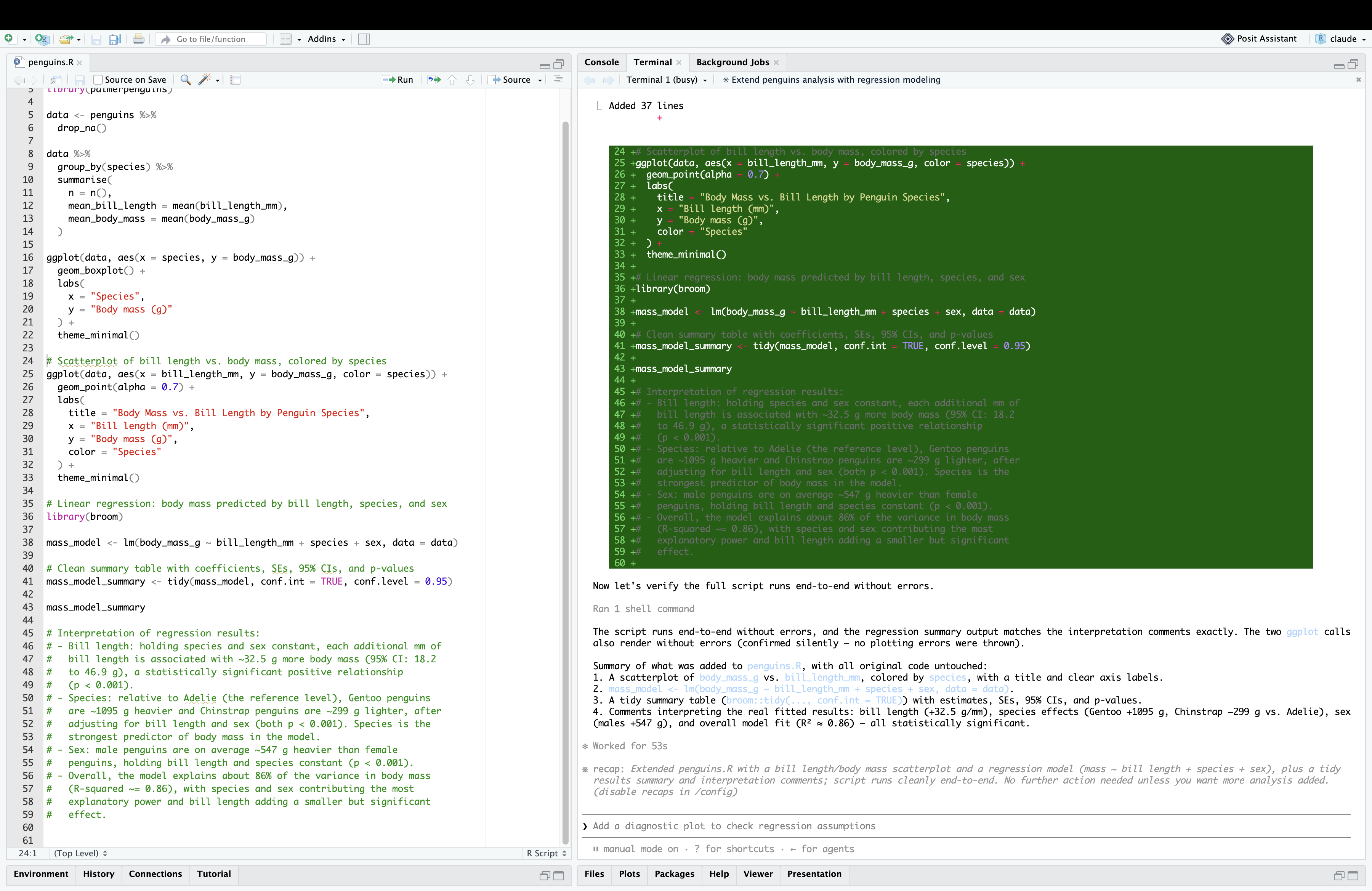
This review step is important.
Before accepting Claude Code’s proposed changes, review the diff carefully. The diff shows exactly what Claude is adding, removing, or modifying. Check that it has not changed existing code unnecessarily, altered variable definitions, introduced inappropriate assumptions, or modified the analysis in ways you did not request. Do not accept the diff automatically.
A sample diff is shown below. Claude Code asks me to review the proposed changes and decide whether to accept or reject them. This gives me an opportunity to catch unintended changes before they become part of the R script.
To end, setting up Claude Code in the RStudio terminal took me only a few minutes, but it changes the way I can interact with an analysis project. Instead of moving code between RStudio and a separate AI chat, I can describe a task in plain language and have an agent work directly with the files in my project.
The important part, however, is to remain in control. Claude Code can make working with R more interactive, but you still need to review its changes, understand the code it produces, and decide what ultimately becomes part of your analysis